Getting Started with WOLF ONE
WOLF ONE nodes can be used for a variety of 3D and 360 applications.
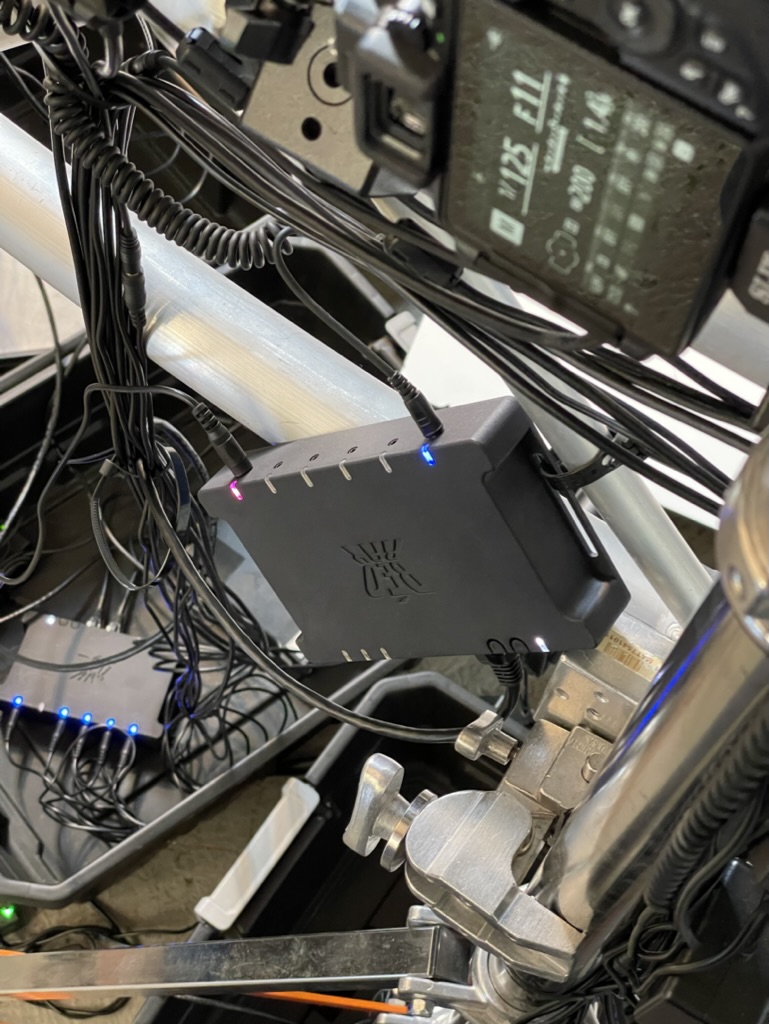
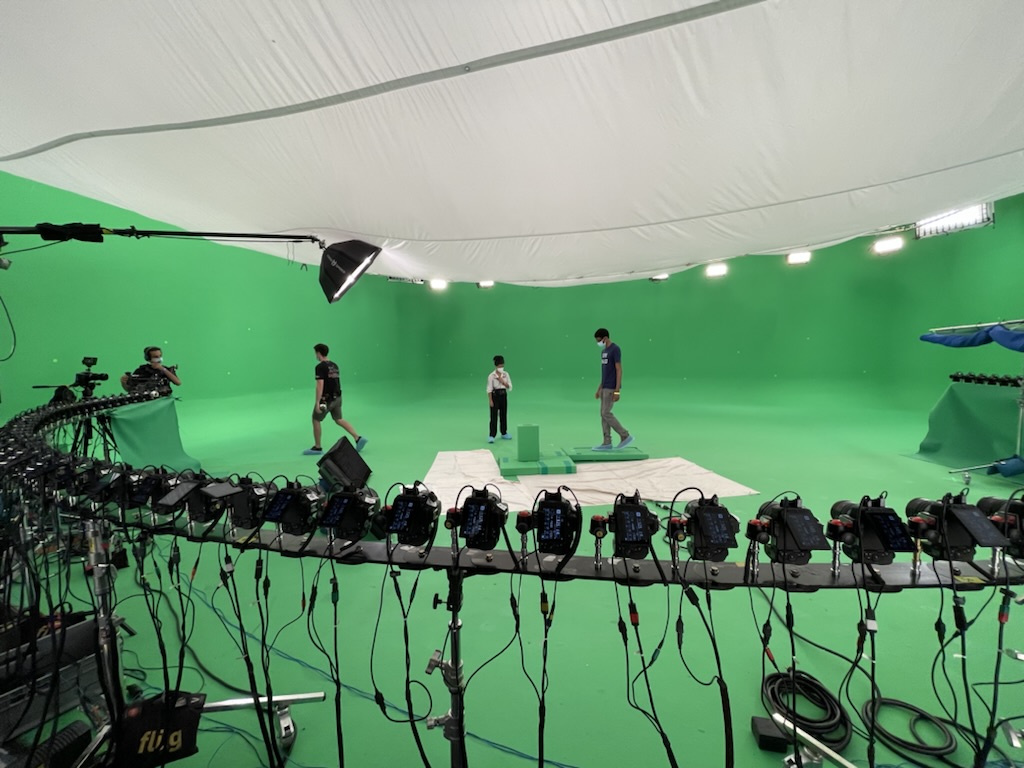
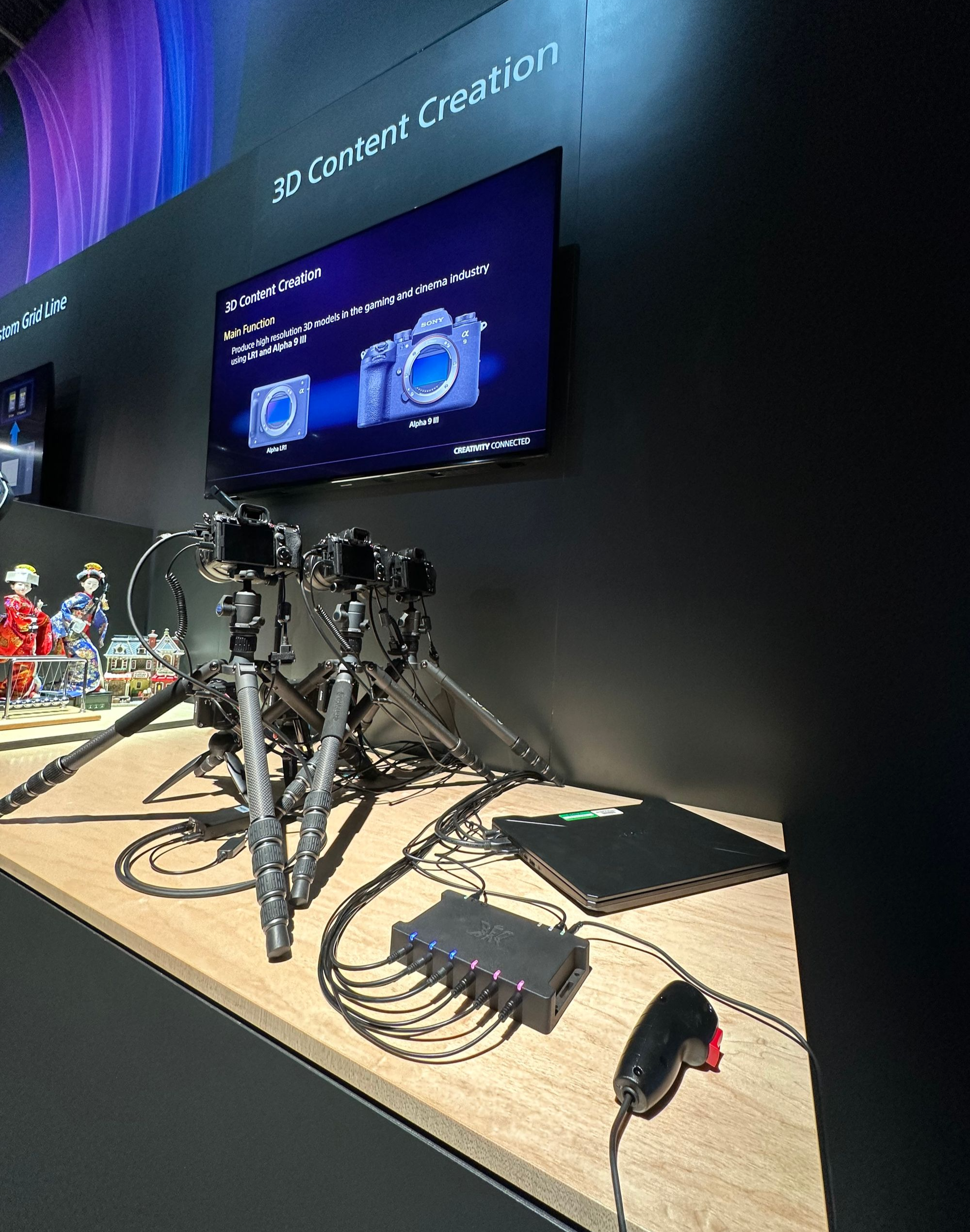
Getting to know your WOLF ONE node
Lets start by reviewing the different connections available on a node. Plugging into a power or input port will illuminate an led indicating that the node recognizes the device. Camera and mono ports are illuminated by default indicating the group they belong to.
Click here to review the ports and capabilities of the hardware Hardware Overview
Setup a WOLF ONE node
Every WOLF ONE node is ready to trigger cameras out of the box without a computer.
- Connect power using the USB Type-C input or the 24v power adapter
- Plug the camera shutter release port to any of the 6 camera ports on the front of the box
- Press the box buttons to wake or trigger the camera. Most cameras require Wake/AF to the held together with Trigger/Release to capture a photo.
How to Trigger WOLF ONE
You may have already used the box buttons to trigger a camera. These buttons are primarily for testing and debugging. When nodes are part of a HowlNET network pressing box buttons on any node will trigger the entire system. Here are some other ways to trigger the system
- 3.5mm TRS Input port (pink)
- Connect a trigger device to this port and the led indicator will flash white. To train the port, click and hold the wake button followed by clicking the trigger button while the wake is still held. The port will turn green if training is successful. Release both buttons to activate the input port. ⚠️ This port must be trained each time a new input device is connected or node is power cycled.
- Beoray Leash Desktop app
- The desktop app has WAKE and TRIGGER buttons available in the top bar. Cameras and Mono ports also have individual W and T buttons.
By default the wake and trigger buttons act as “pass-through” buttons for the camera AF and Shutter release connections. If you tap wake quickly, the box taps camera AF quickly. If you press trigger for 1 second, the box presses the camera shutter release for 1 second.
Connect multiple nodes (daisy-chaining)
Nodes are daisy chained together using HowlNET IN/OUT ports, after which the entire system is powered by a single 24v power adapter. Refer to Hardware Overview to identify each port.

Connect HowlNET OUT of the first box to HowlNET IN of the next box.
Using Leash desktop software
- Connect your Mac/PC to the USB Type-C port of the node
- If you are daisy-chaining nodes, connect USB to the first node in the chain.
- Open Beoray Leash Desktop app
- The Node should automatically connect. If the Node doesn’t connect, check the device drop-down in the upper left corner and try a different port.
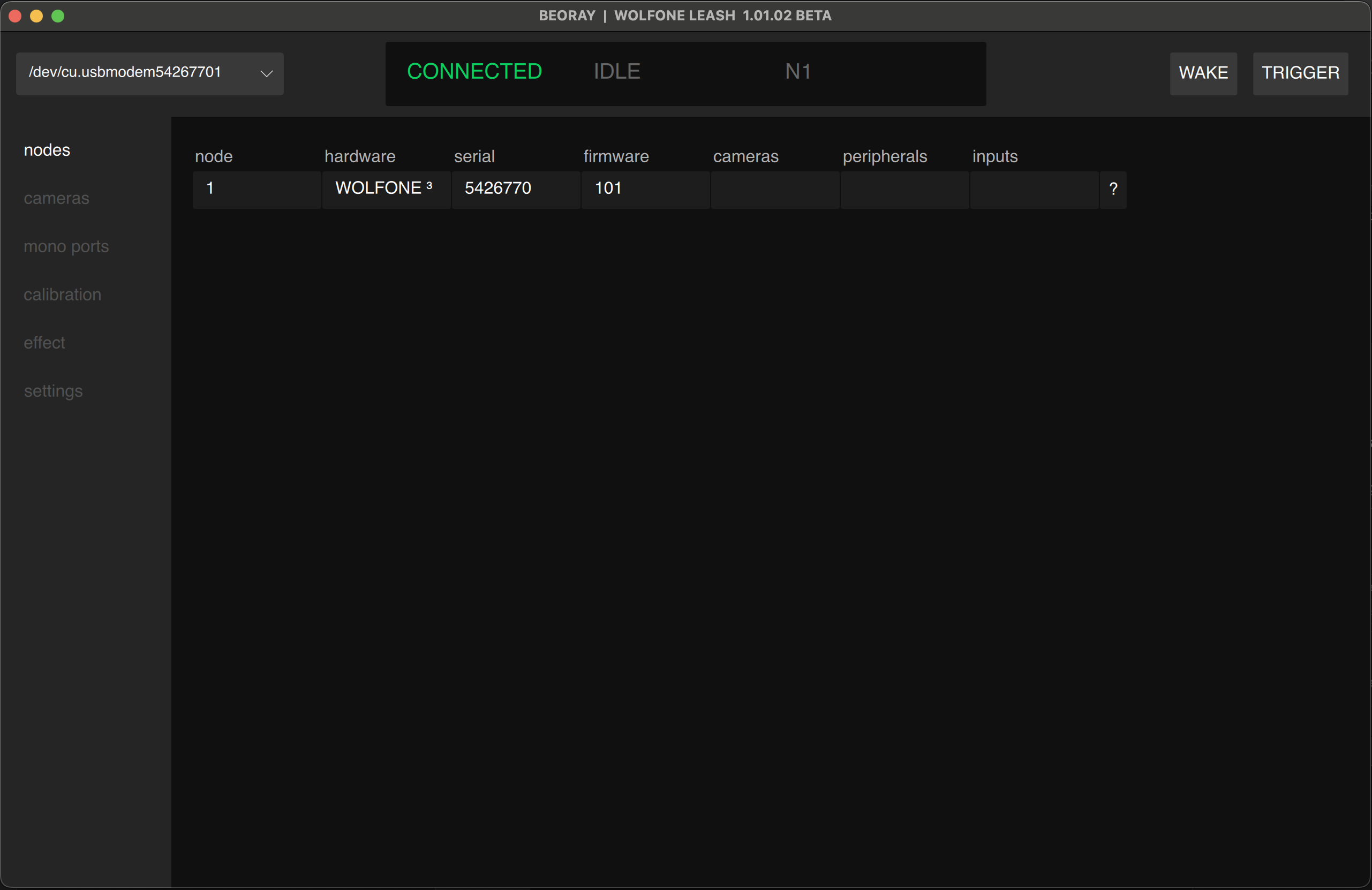
Learn more about the app here