Camera Calibration
Calibration synchronizes camera shutters for perfectly timed multi-camera captures and strobe sync.
Do I Need Calibration?
| With calibration | Without calibration |
|---|---|
| ✅ Save time on multi-camera setup | ❌ Trial-and-error configuration |
| ✅ Precise timing control | ❌ Manual timing adjustments |
| ✅ Cross-brand consistency | ❌ Sync failures (black frames, banding) |
| ✅ Universal effect timing | ❌ Per-camera reprogramming |
You may not need calibration if:
- Running a basic test or proof of concept
- Shooting non-time-critical content
- No strobes or flash in your setup
Benefits of calibration:
- Measure the true timing of your cameras
- Compensate for camera-to-camera timing variations
- Sync different camera brands and models
- Perfect strobe sync - Eliminate black frames and shutter banding
- Increase your maximum viable shutter speed during strobe sync
- Improves accuracy even when cameras are identical
You need calibration if:
- Shooting high-speed subjects requiring perfect sync
- Syncing multiple cameras with strobes or flash
- Commercial work requiring zero timing errors
- Need sub-millisecond precision for VFX or 3D scanning
- Using different camera models, settings, or lenses
Requirements
- WOLF ONE node
- Windows/Mac computer running Leash app
- Compatible camera sync cable
- Compatible camera PC sync cable (flash)
- It is recommended to use the exact flash trigger hardware you intend to use. If you plan to use pocket wizards to trigger your flash, use pocket wizards for calibration.
- In some cases, powering the node, camera, and strobe from separate sources can cause compatibility issues. In this case, reduce the number of cables or change power sources. Further isolation of the the signal using wireless adapters can resolve the issue.
- Changes to the camera, flash, or other devices may change the timing. In this case, re-calibrate the camera.
Perform a Camera Calibration (4 steps)
- Start calibration
- Automated calibration routine
- Assign calibration to a channel
- Apply channels
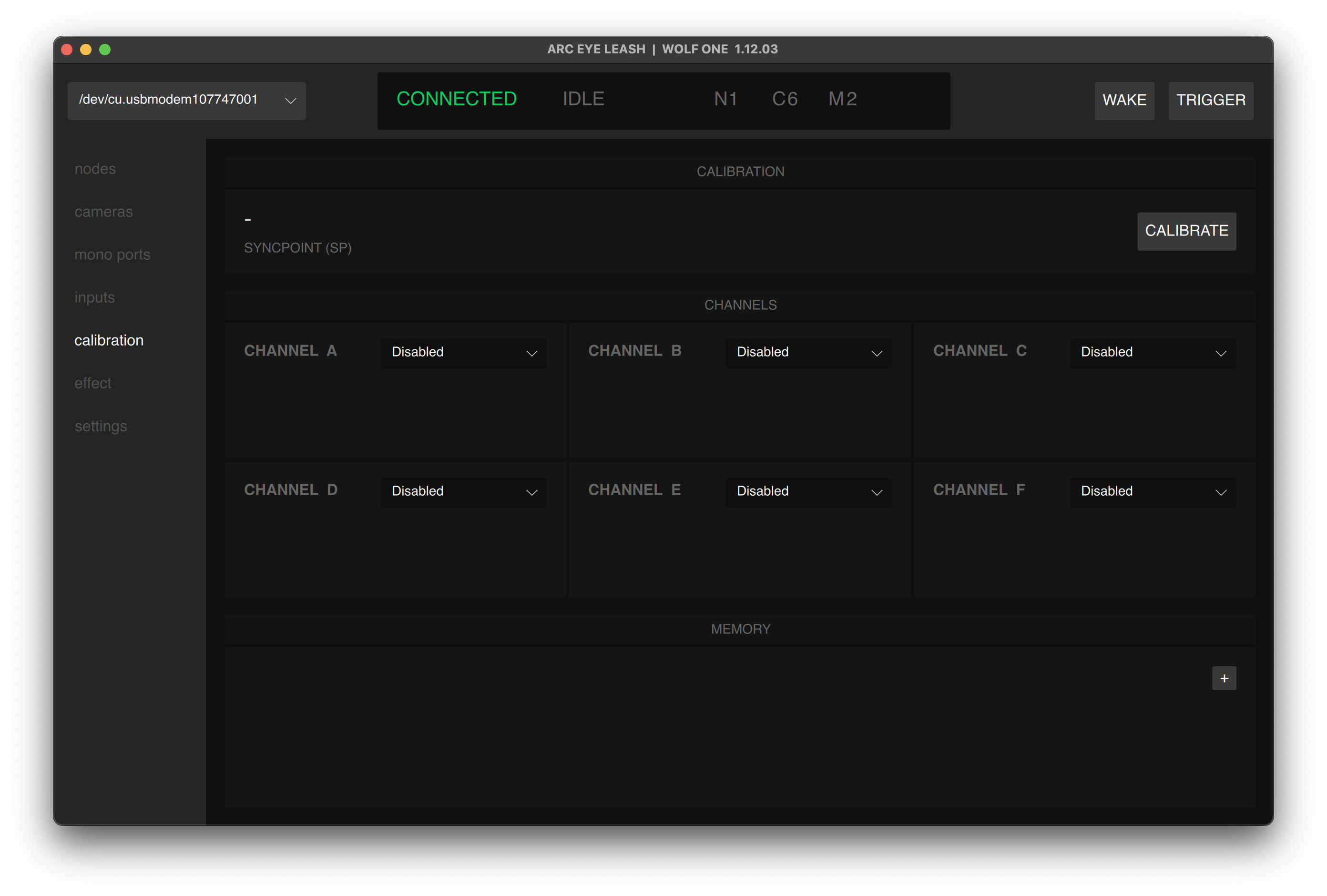
Part 1: Start Calibration
- Connect node to Leash App
- Navigate to the Calibration tab
- Connect the camera shutter release to any port on the node
- Connect the PC sync camera output to the node input port (pink color)
- Press CALIBRATE button
Wired connection to perform camera calibration:
     ┌─────────────┐
     │  Leash App  │
     └──────┬──────┘
            │
            │ USB Type-C
            │
            ▼
     ┌──────────────┐
     │   WOLF ONE   │
     └──────────────┘
          │   ▲
          │   │
  Camera  │   │  PC Sync
(Output)  │   │  (Input)
          │   │
          ▼   │
       ┌──────────┐
       │  CAMERA  │
       └──────────┘
Calibration works across any nodes connected via HowlNET:
┌─────────────┐
│  Leash App  │
└──────┬──────┘
       │
       │ USB Type-C
       │
       ▼
┌──────────┐  HowlNET   ┌──────────┐  HowlNET   ┌──────────┐
│  WOLF 1  │───────────▶│  WOLF 2  │───────────▶│  WOLF 3  │
└──────────┘  OUT → IN  └──────────┘  OUT → IN  └──────────┘
   │    ▲                  │    ▲                  │    ▲
   │    │                  │    │                  │    │
   ▼    │                  ▼    │                  ▼    │
┌──────────┐            ┌──────────┐            ┌──────────┐
│ CAMERA 1 │            │ CAMERA 2 │            │ CAMERA 3 │
└──────────┘            └──────────┘            └──────────┘
Part 2: Calibration Routine
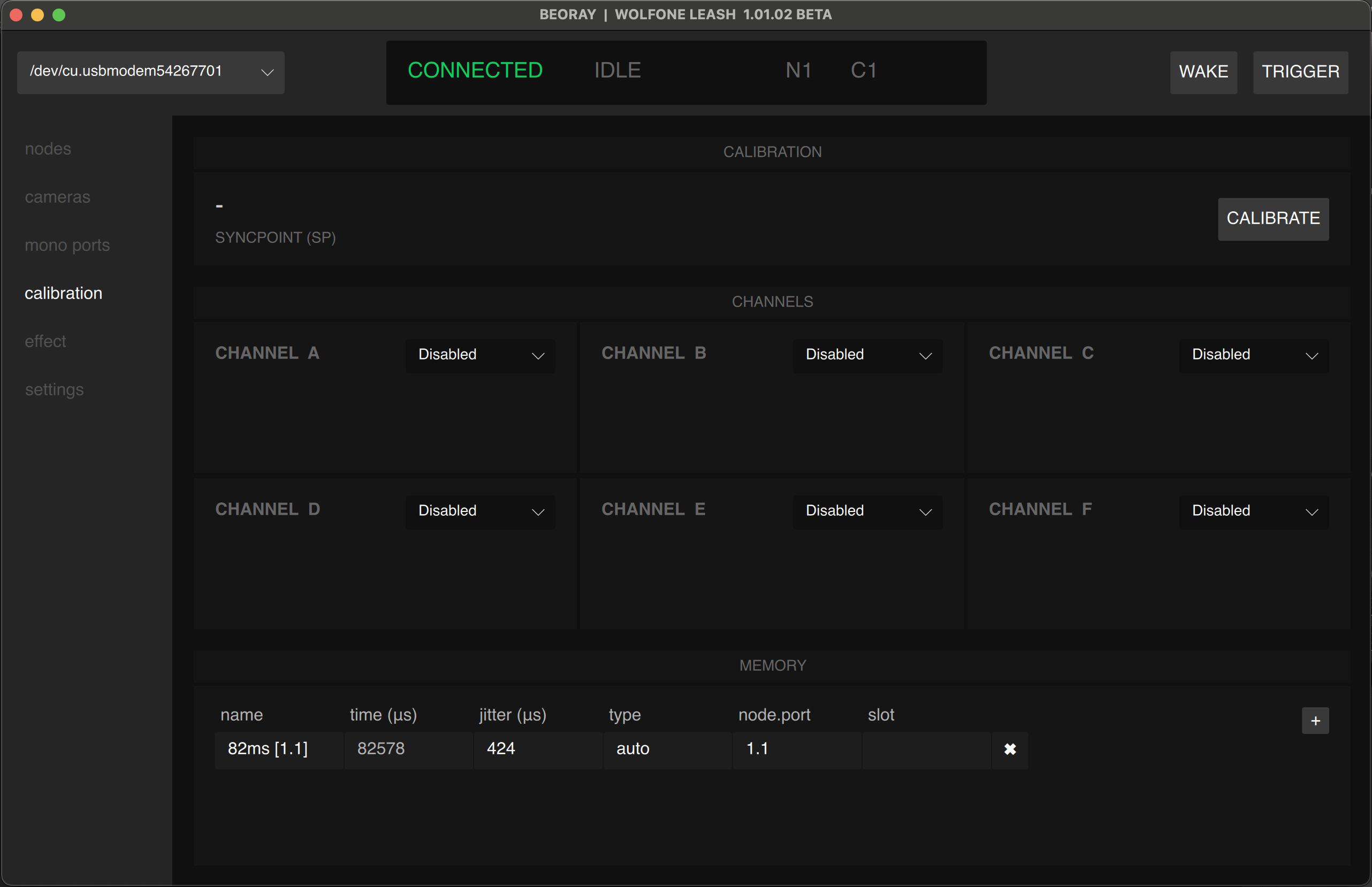
- Leash will automatically search for the camera and start calibrating.
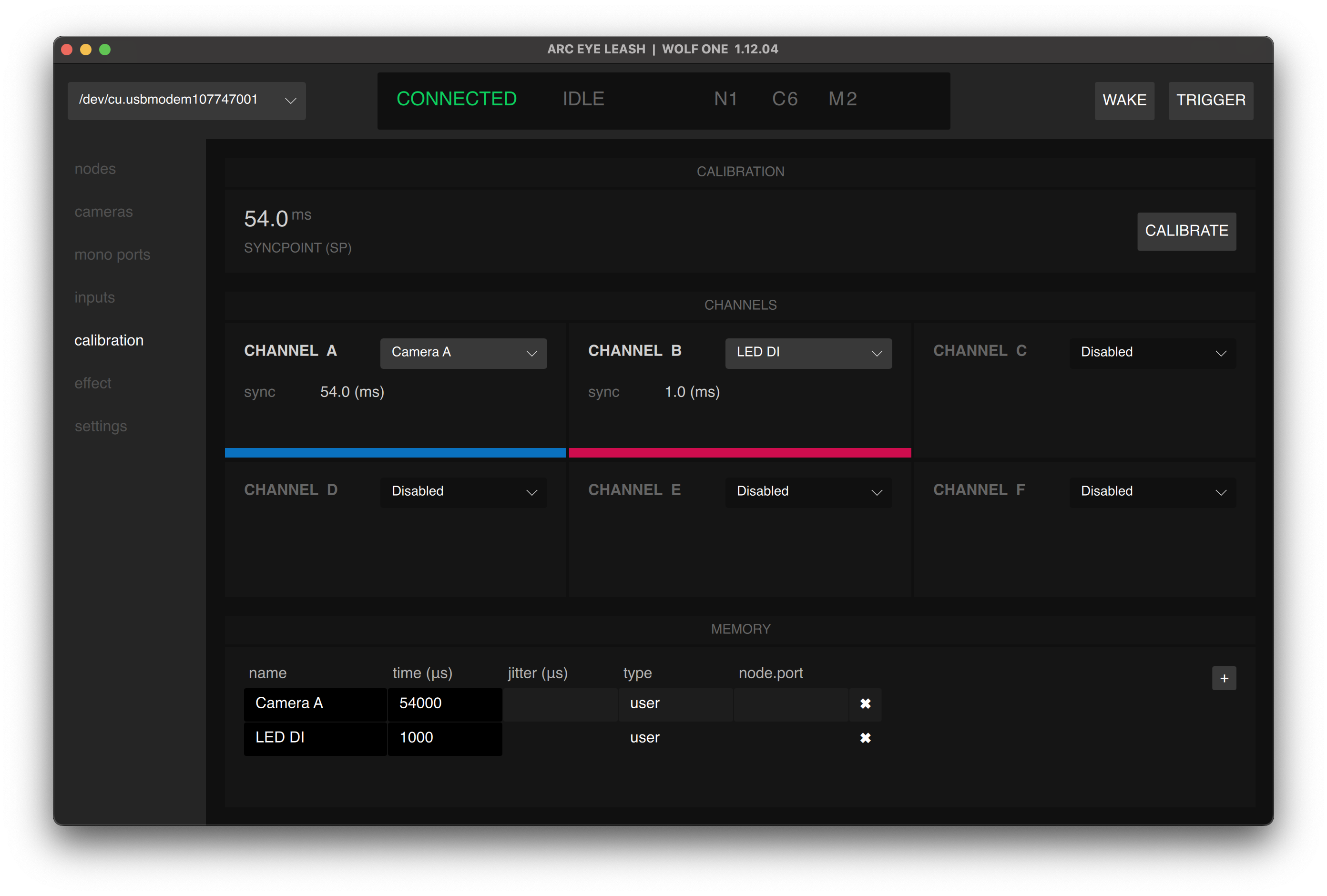
- When calibration is successful an entry will update or appear in MEMORY section at the bottom of the page.
If a calibration for the camera port already exists the value will be replaced. If calibration is unsuccessful, check your connections and ensure the camera is ON and awake. In some cases, the camera will not generate a sync signal automatically and the output needs to be enabled. The camera must remain responsive for the entire duration of calibration.
Part 3: Assign to a calibration channel
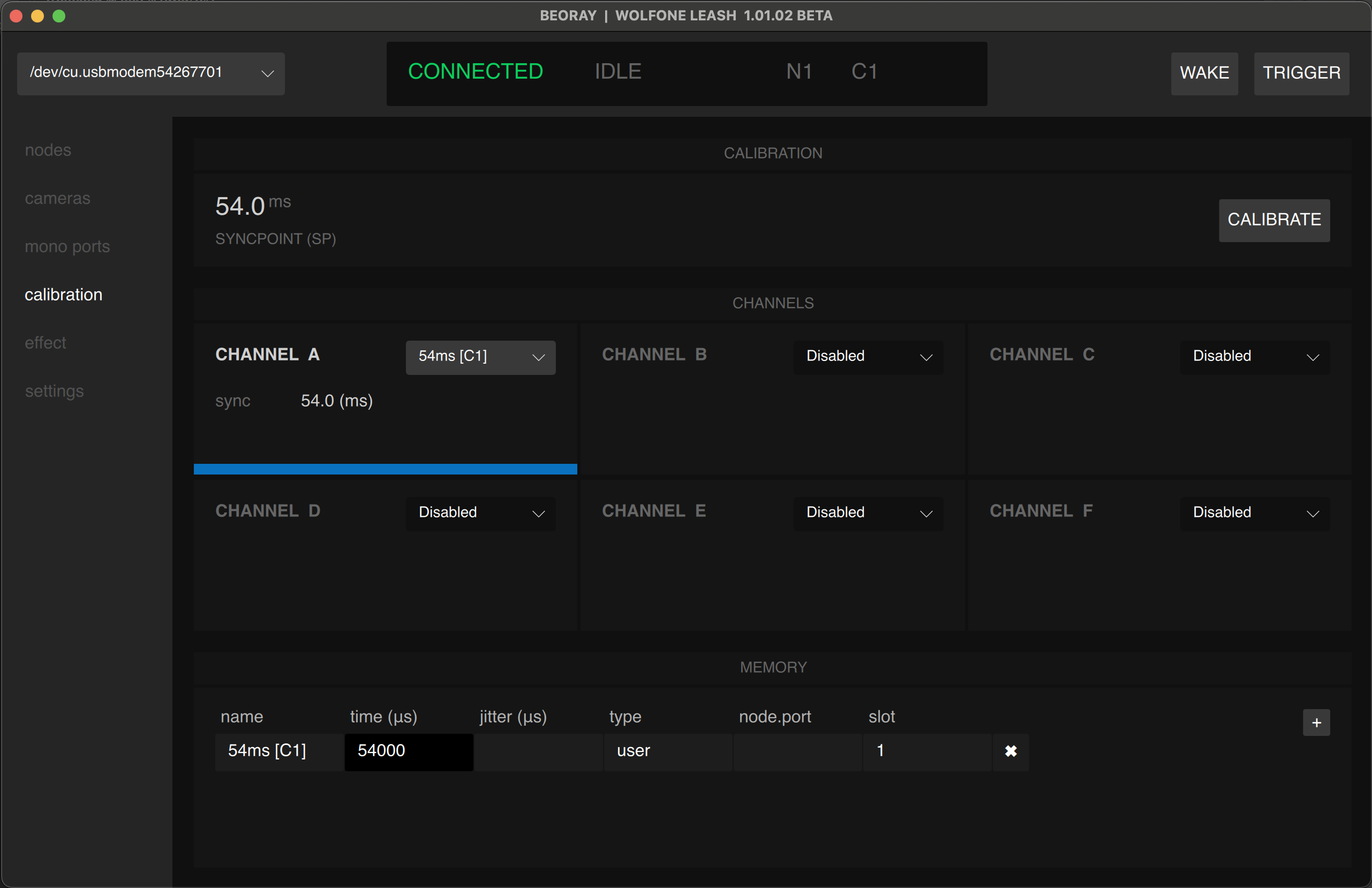
- Once you have a satisfactory calibration value in memory, assign it to a Calibration channel. There are 6 channels to choose from (A,B,C,D,E,F) each with a unique color-blind safe color.
Part 4: Apply calibration channels
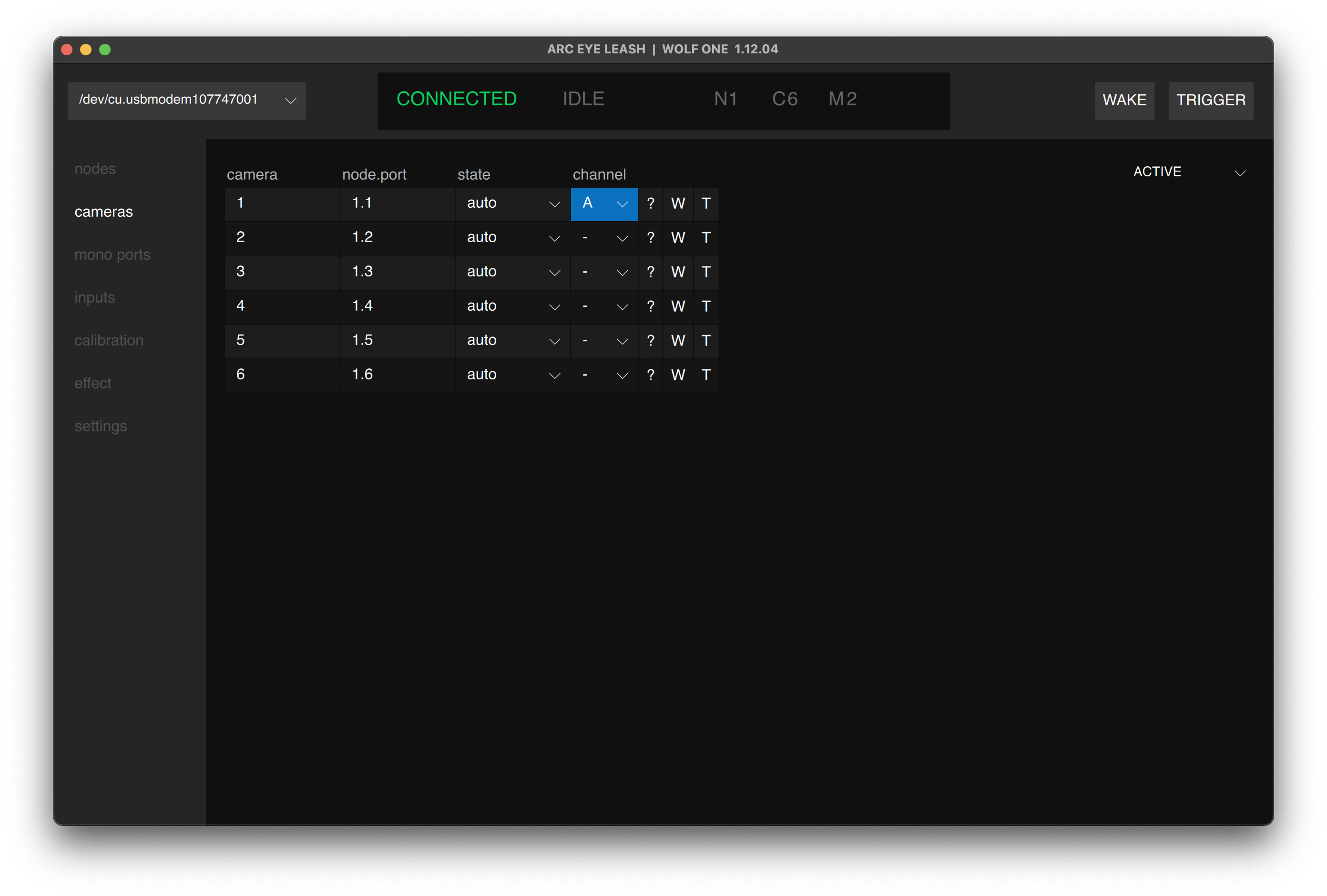
- Apply the calibration channel you selected to camera ports with that camera.
- Camera ports: Match the camera port channel to the camera calibration channel (A,B,C,D,E,F).
- Mono ports: In most cases you will use the SP calibration channel for strobes/flashes.
- Triggering other devices: In most cases you will want to use the SP calibration channel. You can disable calibration timing completely by selecting the blank value (-)
Adding Custom Calibration Values
You may want to add a custom timing you know or previously measured. In these cases, you may add a custom calibration value by clicking the + button in the upper right corner of the MEMORY section.
Calibration Specifications
Channels
| Channel | Purpose | Color |
|---|---|---|
| A | Camera calibration | Blue |
| B | Camera calibration | Magenta |
| C | Camera calibration | Yellow |
| D | Camera calibration | Cyan |
| E | Camera calibration | Purple |
| F | Camera calibration | Orange |
| SP | Syncpoint (strobe) | White |
Calibration Data
| Parameter | Unit | Description |
|---|---|---|
| Sync Time | Microseconds | Shutter lag offset |
| Jitter | Microseconds | Timing variation |
FAQ
How do I interpret the calibration data?
- sync time measured in microseconds.
- jitter is measured in microseconds. For most use cases jitter should be less than 1000us (1 millisecond)
My jitter is too high
- In some cases the calibration routine measured an outlier signal which is skewing the data. Try calibrating again.
- Set the camera to MF focus, AF focus can change the timing of the camera. Try disabling smart features such as face tracking.
- A jitter value of less than 1ms is good enough for most use cases. If you want to improve the jitter value, try the following:
- Adjust the camera settings
- ensure PC software is not interfering with camera operation
- ensure the media (SD card) is fast enough for the camera
- try a different lens
- try a different camera body
- Some cameras are not capable of achieving tight sync. The camera calibration routine is not able to compensate for cameras with high jitter.
I successfully calibrated my camera, and the strobe is firing, but it is not syncing with the cameras.
- Ensure the strobe trigger cable is connected to one of the mono output ports.
- Ensure the mono output port is set to the (SP channel) and that all camera calibration channels are matched correctly.
- In some cases lenses or camera settings can change the calibration of a camera. If you recently changed something, try running a new calibration routine.
- If your calibration jitter is too high (>3ms) you may not be able to achieve consistent sync. Check the "My jitter is too high" question for more information.
The strobe sync is inconsistent. Sometimes I capture black/dark frames. Sometimes I see a black bar on the edge of my image.
- Your shutter speed may be set too high. Even if your camera is rated to sync at 1/200th, you may be required to slow the shutter to 1/100th in a multi-camera configuration.
- If your calibration jitter is too high (>3ms) you may not be able to achieve consistent sync. Check the "My jitter is too high" question for more information.
- Set the camera to MF focus, AF focus can change the timing of the camera. Try disabling smart features such as face tracking.
- In some cases the calibration routine measured an outlier signal which is skewing the data. Try calibrating again.
Do I need a mono-to-mono 3.5mm cable for wireless strobe triggers?
- Yes, a stereo 3.5mm cable may not make proper contact in the input port.
After clicking calibration, nothing happens.
- First ensure the input port is active (green color)
- If the camera is not triggered during the search routine, check the camera sync cable. Ensure it is making good contact and triggering normally.
- The camera or wireless strobe triggers may be sleeping before the routine is started. Confirm they are active and try again.
After clicking calibration, the camera is only triggered once.
- The camera or wireless strobe triggers may be sleeping before the routine is started. Confirm they are active and try again.
- Check the PC sync (or 3.5mm mono-to-mono) cable is functional and making good contact.
- Ensure the camera and any wireless strobe triggers are generating a signal. If the strobe signal is not generated, or the signal hardware is incompatible, the node will not be able to calibrate the camera.
- The camera should be able to trigger at rate of atleast twice per second.
After clicking calibration, the calibration routine fails.
- The camera should be able to trigger at rate of atleast twice per second.
- Slow SD cards can prevent the camera from triggering correctly.
- If the camera is connected to a PC, software running on the PC may prevent the camera from triggering correctly.
- In some cases the camera file format will prevent the camera from triggering correctly. This applies equally to JPEG or RAW. Try selecting a different file format and try again.
Calibration is successful but no new calibration data appears.
- The memory section is a list, try scrolling to see if the entry is hidden. you can also try changing a calibration channel drop down to see if a new entry has appeared.
- Calibration values for existing camera ports are replaced. Check to see if a calibration value was overwritten.
Next Step
Having issues? See Troubleshooting